Information on Groups / Sub-Groups
Groups and Sub-Groups are used to identify different User entities (e.g. Teams, Regions, Areas etc).
Each Group is able to have multiple Sub-Groups to which user access can be granted or restricted.
Note: Groups and Sub-Groups can be added or edited using the main “Groups” Screen on the PlanPoint Platform.
Field User Groups
Plans are saved against the Group/Sub-Group of the Field user completing them at the time of submission.
Field Users are able to have their Sub-Group changed (i.e. to be able to submit plans for different teams) but can only be assigned to 1 Group at any one time.
Office User Groups
Plans are visible on the Platform based of the Group/Sub-Group assigned toe the Office User.
Can be assigned to multiple Groups based on which Field Users A55s/SPOs they wish to see/edit.
If it is desirable for an Office User to be able to View/Edit all plans then they can be set up to see “* All Sub-Groups” within the Office User Group selection.
User Roles
User Role Assignment decides what a User can see and do within the PlanPoint Platform.
Users can be assigned any of the role permissions below to give you flexibility over what your user base can do.
- Company Admin - is the 'owner' of the PlanPoint account
- Finance Officer - manages billing for the account; adds/edits payment and credit card info
- Administrator - adds and edits users
- Office User - can access PlanPoint Platform and view/edit/export A55s (no access to the mobile app)
- Field User - can create PlanPoint A55s on the mobile app (no access to the Platform)
Select User Group / Sub-Groups
Groups / Sub-Groups control what you want the user to be able to see, or where you want their A55s to be displayed.
Groups
- Groups are designed to allow you to configure PlanPoint to best meet your business requirements.
- Example: Groups can be setup and named for things like; Regions, Areas, Contracts, Projects or whatever is relevant to your business.
Sub-Groups
- Sub-Groups sit underneath your main Groups and allow control of where A55s are saved and displayed, who can view and edit them and how Users are assigned.
- Example: Sub-Groups can be setup and named for Sub-Contractors, Teams, Departments or whatever is relevant to your business.
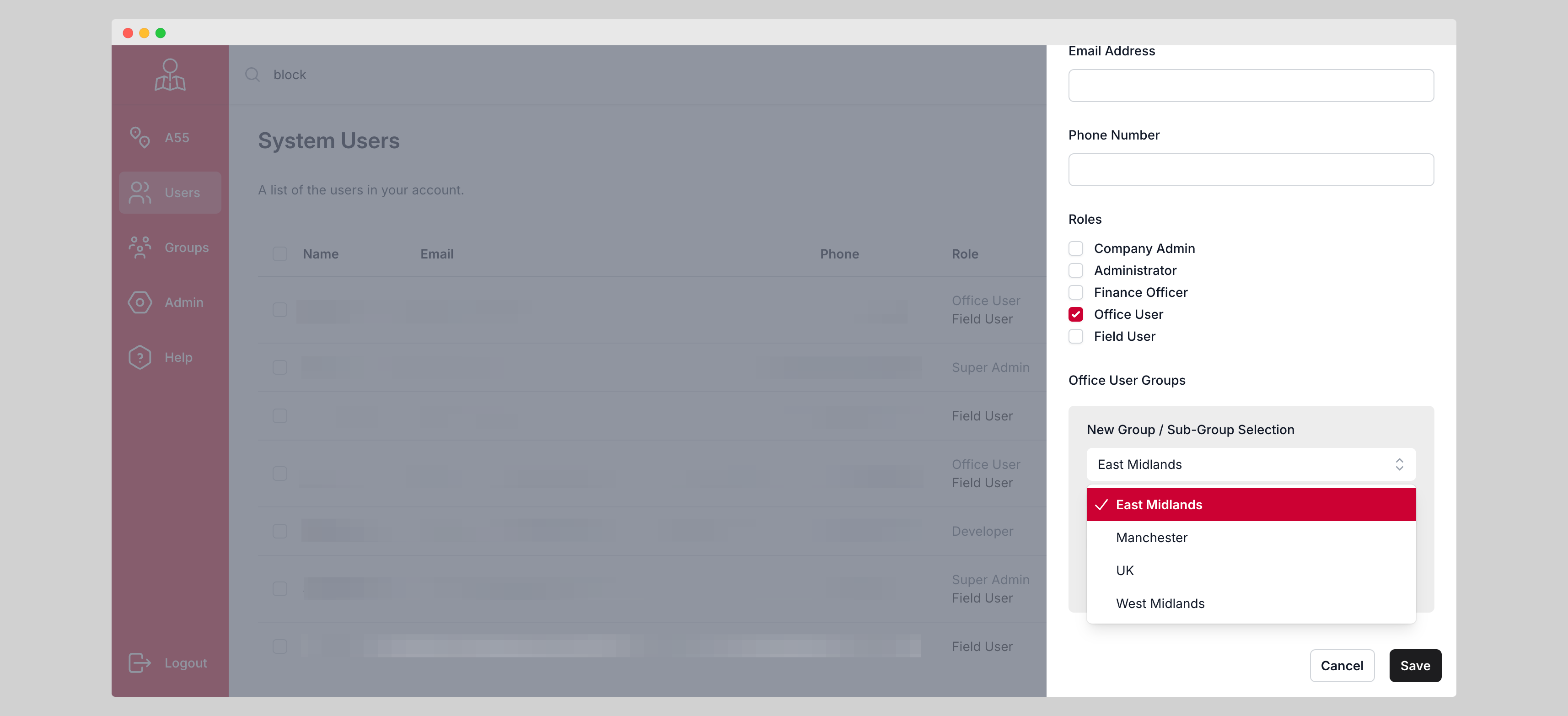
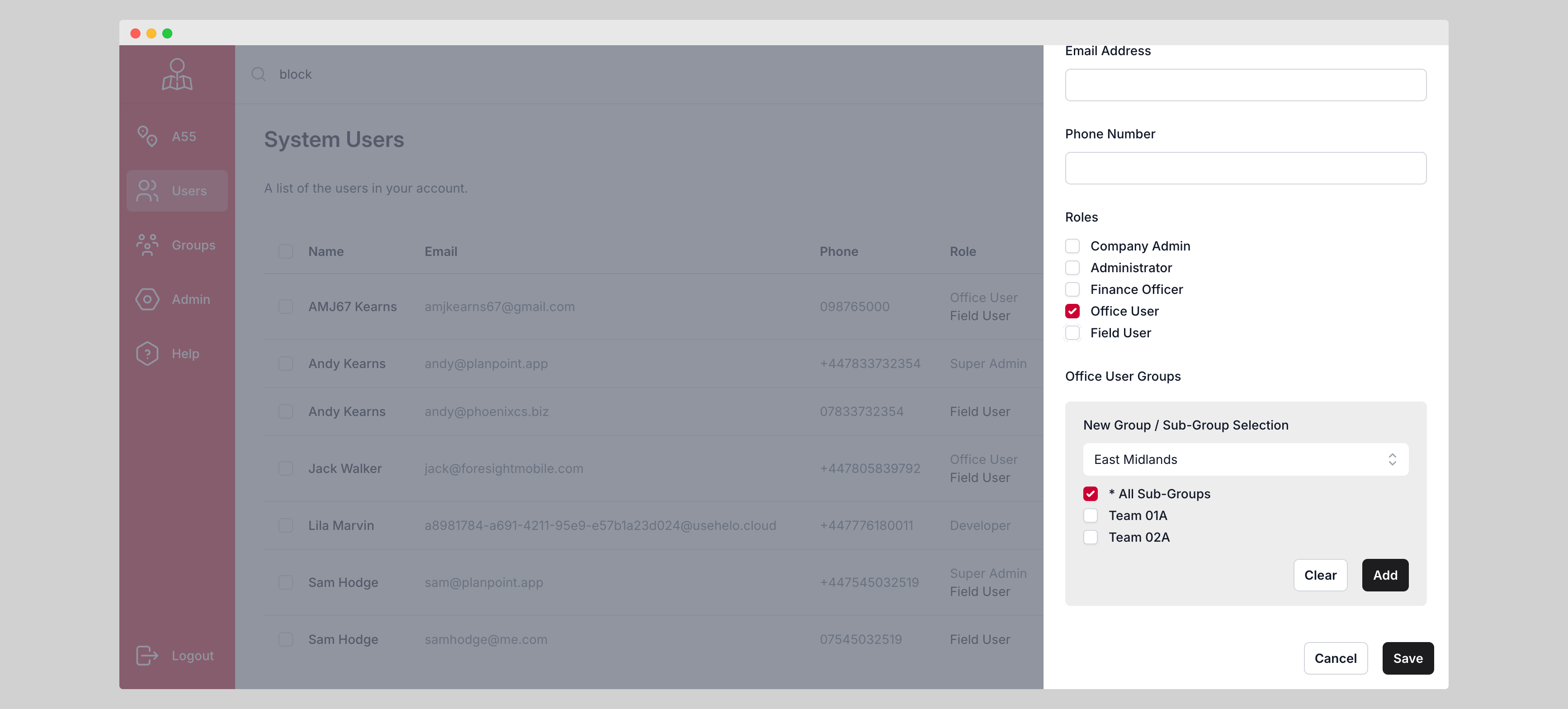
Office User - Group Assignment
Office User can be assigned to Groups and can be given access to view all Sub-Groups or restrict to only be able to see certain Sub-Groups.
By selecting All Sub-Groups allows an Office User to be able to view all A55 Plans for all users regardless of which Sub-Group the User is assigned to.
For example: An office user could view all plans created in a whole region (Group) regardless of which sub-contractor (Sub-Group) has created them.
Field User - Group Assignment
Field Users must be assigned to only one Sub-Group.
For example: This allows you to assign users to a particular team or subcontractor working within a region (Group).
Note: Field Users can only be assigned one Sub-Group at any one time. Any plans created will be linked to this Sub-Group.
- You can change a Users Sub-Group assignment at any time. There plans will remain with the Sub-Group that they were assigned to at the point they created them.
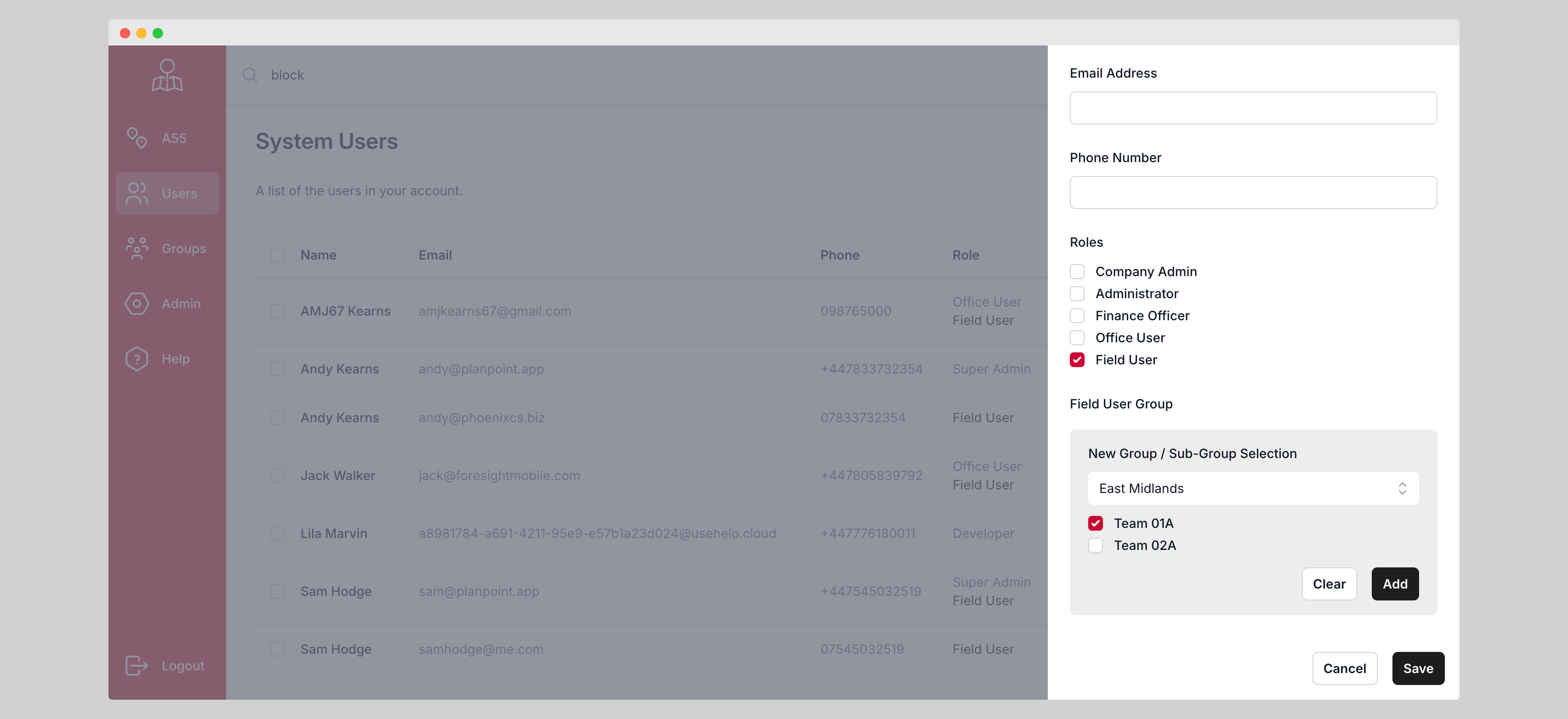
For example: You may wish to add Users to Sub-Groups based on a particular project or contract they work on, or if they all work for the same team.
Was this article helpful?
That’s Great!
Thank you for your feedback
Sorry! We couldn't be helpful
Thank you for your feedback
Feedback sent
We appreciate your effort and will try to fix the article